Start a Run
Once a Work Plan template is published, you can initiate a run to begin work. You'll be able to modify it as well. Sometimes there are steps or instructions specific to a run, that you don't want in the template. The run-specific details can be added at any time after the run is created, even during the execution of the run.
- Navigate to the Work Plans Library to view the existing Work Plan templates.
- Click the vertical elipses menu (3 dots) from the Work Plan you want to run, and click
Run. - You can also initiate runs from inside the Work Plan detail page by clicking on
Create Run.
- Click the vertical elipses menu (3 dots) from the Work Plan you want to run, and click
- Either method brings you to the Create Work Plan Run dialog box.
Create a Work Plan Run
Add Serial Numbers
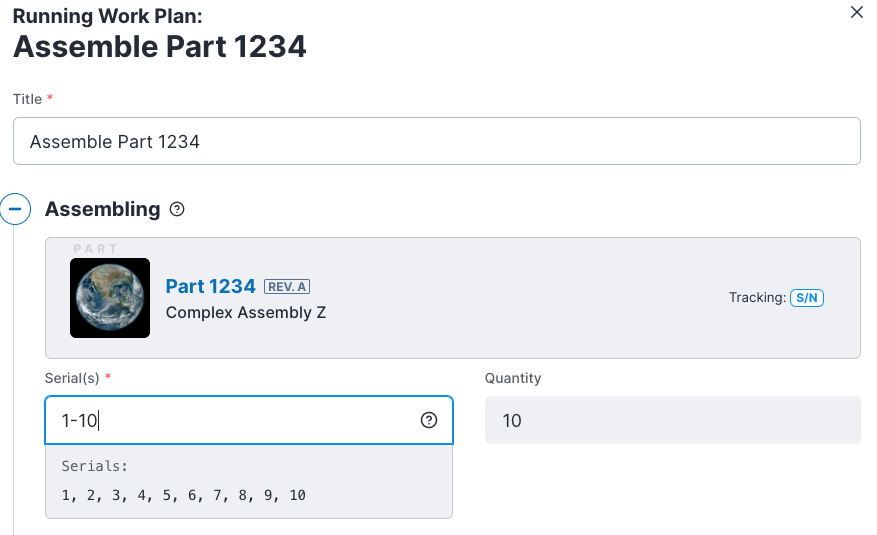
- If you are assembling a part, you need to tell Boltline what the serial numbers are for the parts being assembled.
Boltline makes it easy to assemble multiple S/N parts for a Work Plan. Simply enter a range, or specific numbers, and Boltline will automatically tally the total quantity to assemble.
Review Operations and Attach Workflows
-
You can review the Operations and attach Workflows as needed.
-
You can add or modify operations, steps, or any details specific to the run at any time after closing the Create Work Plan Run dialog box. Instructions on how to edit operations and steps can be found in Edit a Run Instance in Execute a Run.
- For any operations you want linked to Workflows, now is the time to modify the Workflow card fields.
You can create custom fields for your Workflow, and they will be visible here to ensure all necessary details are captured when the run is executed.
Submit and Start the Run
- Once all configuration is complete, click
Submitto start the run. Now you'll be able to find the run under Work Plans, then Running in the left navigation panel. Now you are ready to execute the operational steps in the run.
A new instance of the Work Plan has started. Any associated Workflow cards are automatically created, so you and your team are ready to begin work.